Almost every corporate person knows about the team meeting service called Microsoft Teams. Every day, remote teams, businesses, and educational institutions use it for file sharing, messaging, and meetings. However, it occasionally encounters technical problems, just like any software. Microsoft Teams Error 657rx, which usually appears with the message “Something went wrong [657rx],” is one annoying example.
This error can disrupt your workflow and make it challenging to access your account if you run into it when logging into Teams or Outlook. Fortunately, authentication, cached data, or licensing issues are typically the cause of the problem, all of which can be resolved with a few troubleshooting techniques.
In this guide, we’ll explain what Microsoft Teams error 657rx means, why it happens, and how to fix it in Windows 11 and Windows 10 using proven solutions.
What Is Microsoft Teams Error 657rx?
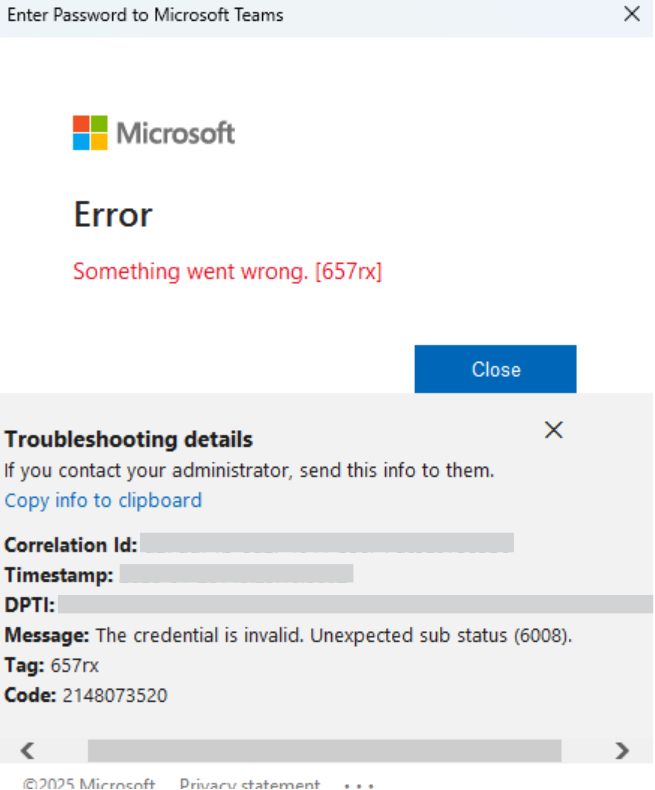
Users are unable to access Teams or Outlook due to a login or authentication issue caused by Microsoft Teams error 657rx. It typically occurs when the application is unable to correctly verify account credentials or licensing information.
This error message could appear when:
- Getting into Microsoft Teams
- Launching Outlook
- Using Microsoft Office programs linked to an account at work or school
- Usually, the error appears as:
- “There was a problem. [657rx]
The problem typically arises from credential conflicts, corrupted cache files, or synchronization issues between Windows and your Microsoft account, even though the message itself is ambiguous.
Why Does Microsoft Teams Error 657rx Occur?
You can solve the issue more quickly if you know what’s causing it. Error 657rx frequently happens following system modifications or problems with account synchronization.
Typical triggers include the following:
- Cached credentials that are corrupted
- Inconsistent or outdated login information
- Outdated tokens for Office or Teams authentication
- Errors in account synchronization
- Installation files for Microsoft Office that are damaged
- System upgrades or Windows updates
- Changes or updates to BIOS or motherboard
Due to Teams and Outlook’s heavy reliance on Microsoft account authentication, this error may occur if stored credentials or licensing data are disrupted.
Thankfully, the solutions are simple. The best ways to fix Microsoft Teams error 657rx in Windows 11/10 are listed below.
Fix 1: Clear Cached Credentials
Outdated or corrupted Windows cached credentials are one of the most frequent causes of Teams error 657rx. Conflicts arise, and the application is unable to log in when the system attempts to authenticate using previous login credentials.
Usually, the problem is quickly resolved by clearing these stored credentials.
How to remove cached credentials
- Search and open “Credential Manager “ from Window’s Search.
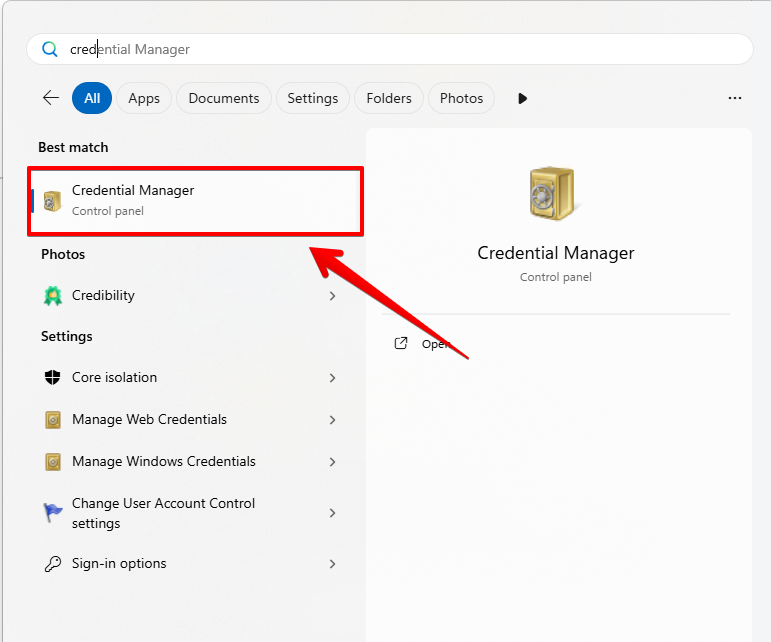
- Choose your Windows login credentials.
- Search for entries pertaining to Microsoft Office, Outlook, or Teams.
- After selecting each entry, click Remove.
- Give your computer a restart.
- Open Microsoft Teams once more, then log in using your credentials.
Teams will request new authentication information once the old credentials are deleted, which typically fixes the issue.
Fix 2: Clear Microsoft Teams and Outlook Cache Files
Applications like Teams store temporary files to speed up performance. These temp files known as cache can cause issues to your system if they are corrupted. Deleting these files forces Teams and Outlook to rebuild fresh data.
Steps to clear Teams cache
- Press the shortcut for File Explorer, Win + E to open it. .
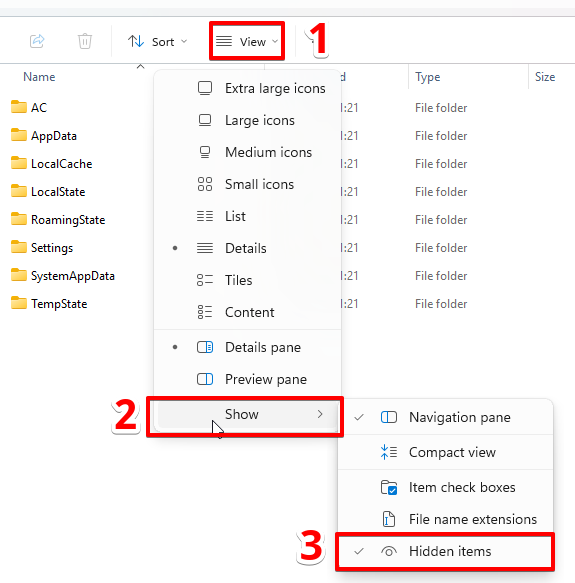
- Enable Hidden items from the View menu.
- Navigate to the following folder: %appdata%\Microsoft\teams
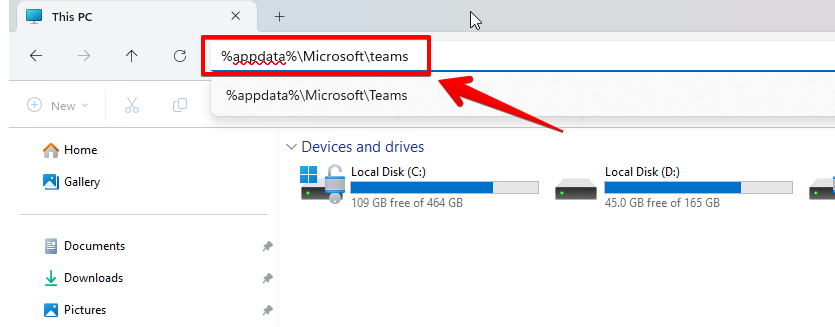
- Delete all files and folders inside this directory.
Steps to clear Outlook cache
- Open File Explorer again.
- Go to the following location: %localappdata%\Microsoft\Outlook
- Open the RoamCache folder.
- Delete all files inside the folder.
After removing the cache files, reboot your system and open teams again. The application will rebuild the cache automatically.
Fix 3: Reconnect Your Work or School Account
The error is frequently caused by a corrupted Windows account synchronization with your work or school account.
Reconnecting the account fixes login conflicts and updates the authentication tokens.
How to reconnect your account
- Log out of Outlook, Microsoft Teams, and every Office program.
- Close all of the applications.
- Paste the path below into the address bar of File Explorer after opening it: %localappdata%\Packages\Microsoft.AAD.BrokerPlugin_cw5n1h2txyewy
- Take all the files and folders out of this directory.

- Proceed to Settings.
- Go to Accounts to access work or school.
- After choosing the associated account, click Disconnect.
- Restart your computer.
After restarting:
- Return to Settings → Accounts → Go to work or school.

- Press “Connect.”
- Use your work or school account to log in again.
- Finally, open Microsoft Teams and log in. This method frequently fixes the problem immediately.
Fix 4: Run the OLicenseCleanup.vbs Script
Microsoft Teams error 657rx can occasionally be linked to licensing issues with Microsoft 365. Office apps may not authenticate correctly if the system keeps out-of-date activation data.
To reset activation states, Microsoft offers a script called OLicenseCleanup.vbs.
How to execute the script
- The OLicenseCleanup.vbs script can be downloaded from Microsoft’s official documentation.
- Choose Run as administrator by doing a right-click on the file.
- Permit the script to delete outdated Office licensing information.
- Give your computer a restart.
- Open Outlook or Microsoft Teams, then log in once more.
By doing this, licensing data is reset, enabling Office apps to properly activate with your account.
Fix 5: Update Windows
There may occasionally be issues with Microsoft services and authentication components when using an out-of-date version of Windows. Teams, Office, and system components stay compatible when Windows is updated.
How to update Windows
- To access Settings, press Windows + I.
- Select Windows Update.
- Choose “Check for updates.”

- Install any updates that are available.
- After the updates have finished installing, restart your computer.
Installing the most recent Windows updates, according to numerous users, fixes Teams login problems and associated authentication errors.
Fix 6: Repair Microsoft Office Installation
If none of the earlier solutions resolve the problem, corrupted Microsoft Office installation files may be the root of the problem. In this instance, missing or damaged parts can be restored by fixing the Office installation.
How to fix Microsoft Office
- Launch the Control Panel.
- Click Programs and you will reach Programs and Features section,
- Look for Microsoft Office or Microsoft 365 on the list.
- Select Change with a right-click.
- Choose Quick Repair.
- After selecting Repair, watch for the procedure to finish.
You can use Online Repair, which carries out a more thorough reinstall of Office components, if Quick Repair is unable to resolve the problem. Restart your computer and launch Microsoft Teams once the repair is complete.
Additional Tips to Prevent Microsoft Teams Error 657rx
Even though the aforementioned fixes usually fix the problem, you can prevent it from happening again by taking a few precautions.
- Update your system: To keep Windows compatible with Microsoft services, always install the most recent updates.
- Make sure to sign out: Steer clear of abruptly ending Teams while you’re logged in. Properly signing out minimizes authentication conflicts.
- Periodically clear the cache: Every few months, Teams cache files should be deleted to avoid the accumulation of corrupted data.
- Keep your internet connection steady: Slow or erratic network connections can occasionally lead to authentication errors.
- Restart Teams after update: Restart the program to update login sessions whenever Teams or Office updates are installed.
When Does Error 657rx Usually Appear?
After making major changes to their system, many users become aware of this error.
Typical situations consist of:
- Moving up to Windows 11 from Windows 10
- BIOS updates
- Changing the motherboard
- Office account migration
- Modifying the security policies of the organization
These modifications may interfere with Windows’ stored authentication tokens, resulting in login errors until credentials are updated.
When to Contact IT Support
Organizational policies or licensing restrictions may occasionally be the cause of the problem if you are using a work or school account.
You should speak with your IT administrator if:
- Despite attempting all fixes, the error still occurs.
- Your work or school accounts cannot be reconnected.
- Office licensing is not activated. Teams only malfunctions on devices under corporate control.
It might be necessary for your IT department to reassign the Microsoft 365 license or reset account permissions.
Final Thoughts
It can be annoying when Microsoft Teams error 657rx keeps you from signing in or accessing crucial work discussions. However, the problem is typically related to licensing data, cached credentials, or authentication conflicts, all of which can be resolved with a few troubleshooting techniques.
Since these are the most frequent causes, start by deleting application cache files and cached credentials. Reconnect your work account, use the OLicenseCleanup.vbs script to reset Office licensing, update Windows, or fix the Microsoft Office installation if the issue continues.
You should be able to fix Microsoft Teams error 657rx in Windows 11 or Windows 10 and get regular access to your Teams and Outlook apps by following the instructions in this guide.