When you launch Microsoft Teams to join a meeting, a frustrating message stating that “Microsoft Teams can’t find a required component to run” appears in place of the familiar interface. The app suddenly won’t launch. Meetings are postponed. Workflows cease. And you’re left wondering what went wrong.
Many people are unaware of how common this mistake is. It typically manifests following an update, a corrupted installation, or an issue with specific system files that Teams depends on. Although the message appears technical, the fundamental problem is frequently something straightforward.
Fortunately, this issue can typically be resolved without a high level of technical expertise. You can quickly resume work after restoring Teams with a few cautious steps.
We’ll dissect the error’s root cause and walk through workable solutions in this guide.
Contents
- Understanding The Problem
- How to Fix Microsoft Teams can’t find a required component to run
- #1 Restart Your Computer
- #2 Clear the Microsoft Teams Cache
- #3 Remove the Microsoft Edge WebView2 Runtime Registry Entry
- #4 Reinstall Microsoft Edge WebView2 Runtime
- #5 Run Teams as an Administrator
- #6 Check for Windows Updates
- #7 Disable Conflicting Security Software
- #8 Create a New Windows User Profile
- Conclusion
Understanding The Problem
For Microsoft Teams to function properly, a number of components are needed. These consist of system libraries, files installed with the Teams application, background services, and cached data. The program may not launch if one of these components is absent, corrupted, or blocked.
The “required component” error typically appears in situations such as:
- A corrupted Teams installation
- Damaged cache files
- Incomplete software updates
- Missing system dependencies like Visual C++ libraries
- Permission issues in Windows
- Conflicts with security software
How to Fix Microsoft Teams can’t find a required component to run
Below are multiple independent methods to fix this Microsoft Teams issue. You can follow the methods in order of the methods shown as you go down.
#1 Restart Your Computer
Begin with the most basic step before moving on to more complex tasks. Restarting your computer refreshes system processes and removes temporary memory. Many application errors happen when background services become stuck or overloaded.
A restart causes Windows to reload system components and restart all currently running services. If the error was caused by a temporary glitch, this may be sufficient to resolve it.
Steps:
- In Windows, open the Start menu and select the Power icon.
- Select the Restart option from the menu.
- Wait for your computer to shut down and reboot completely.
- Once the system has restarted, open Microsoft Teams normally.
- Determine whether the application launches without displaying the component error.
#2 Clear the Microsoft Teams Cache
Microsoft Teams uses temporary data to improve performance. Over time, these cached files may become corrupted. When this occurs, Teams may fail to load required resources, resulting in a component error.
Clearing the cache forces Teams to rebuild these files from the beginning, which frequently resolves startup issues.
Steps
- Shut down Microsoft Teams completely, including from the system tray.
- To open the Run dialog box, press the Windows + R keyboard shortcut.
- Type %appdata%\Microsoft\Teams and hit Enter.
- A folder will appear, containing Teams cache files.
- Select all the files and folders in this directory.
- Delete the selected items from the folder.
- Restart Microsoft Teams and let it recreate the necessary cache files automatically.
#3 Remove the Microsoft Edge WebView2 Runtime Registry Entry
Microsoft Teams uses Microsoft Edge WebView2 Runtime to render parts of its interface. This component enables Teams to display web-based content within their application. If the WebView2 runtime becomes corrupted or its registry entries are damaged, Teams may be unable to locate a required component during startup.
In some cases, removing the problematic registry entry allows Windows to properly rebuild the component when you open Teams again. Because the Windows Registry controls critical system settings, it is critical to follow the instructions precisely.
- Press Windows + R on your keyboard to open the Run dialog box.
- Type regedit into the Run box and press Enter to open the Registry Editor.
- If the User Account Control prompt appears, click Yes to allow the Registry Editor to open.
- In the Registry Editor, navigate through the folders in the left panel to reach HKEY_LOCAL_MACHINE\SOFTWARE\WOW6432Node\Microsoft\EdgeUpdate\Clients.
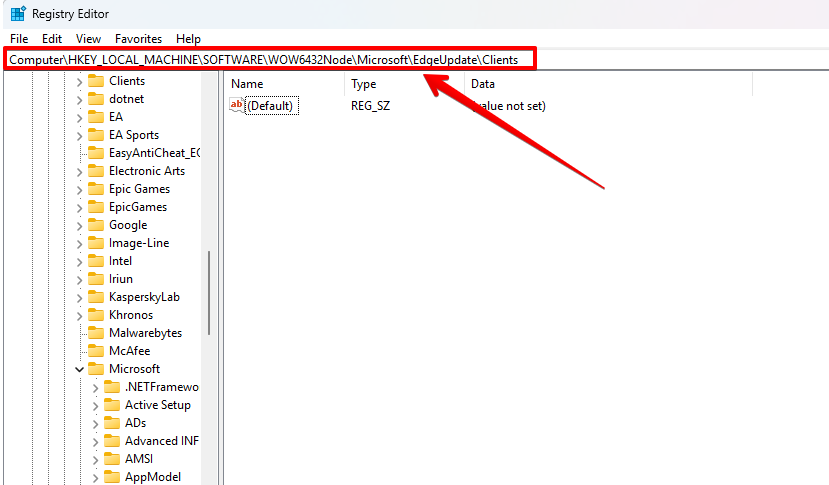
- Expand the Clients folder to view the list of registry keys stored under it.
- Locate the key named {F3017226-FE2A-4295-8BDF-00C3A9A7E4C5} inside the Clients folder.
- Right-click the key and select Delete from the context menu.
- Confirm the deletion when Windows asks for confirmation.
- Close the Registry Editor after the key has been removed.
- Restart your computer so Windows can refresh system components and rebuild the necessary runtime files.
#4 Reinstall Microsoft Edge WebView2 Runtime
The Microsoft Edge WebView2 Runtime is necessary for Microsoft Teams to display web-based components within the program. Teams may be unable to locate a necessary component and refuse to start if this runtime is corrupted, out-of-date, or missing. By reinstalling WebView2, the environment that Teams depends on is restored and damaged files are replaced.
The problem is frequently quickly resolved by installing the most recent version of the runtime, particularly if the previous installation was either removed during a system update or was incomplete.
- Open your web browser and visit the official Microsoft Edge WebView2 download page.
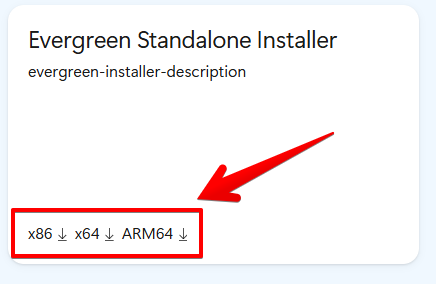
- Scroll down the page until you find the Evergreen Standalone Installer section.
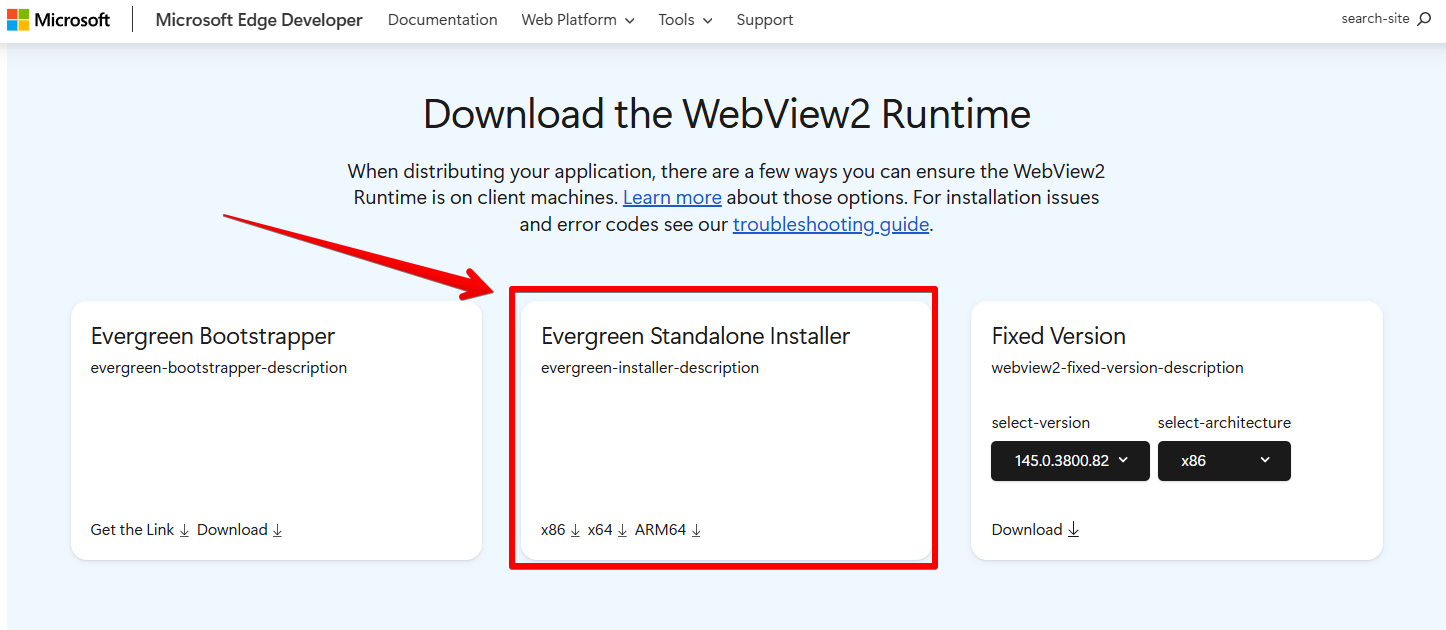
- Download the installer that matches your Windows architecture, either 64-bit or 32-bit or ARM64.
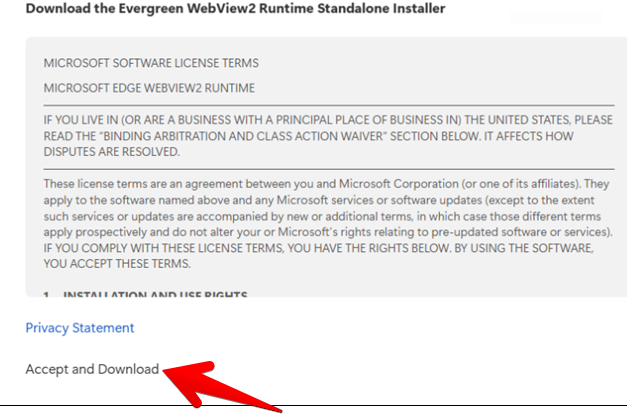
- Click Accept and Download when the confirmation window appears.
- Wait for the installer file to finish downloading to your computer.
- Locate the downloaded file named MicrosoftEdgeWebView2RuntimeInstaller.exe.
- Double-click the installer file to start the installation process.
- Follow the on-screen instructions to download and reinstall the Microsoft Edge WebView2 Runtime.
- Wait for the installation process to complete successfully.
- Launch Microsoft Teams again and check whether the required component error has been resolved.
#5 Run Teams as an Administrator
Permission issues can sometimes prevent Teams from accessing required system components. Running the application with administrator privileges ensures that it has the necessary permissions. This can be especially helpful if certain files or services are restricted by Windows security settings.
Steps:
- Locate the Microsoft Teams shortcut on your desktop or in the Start menu.
- Right-click the application icon.
- Select Run as administrator from the context menu.
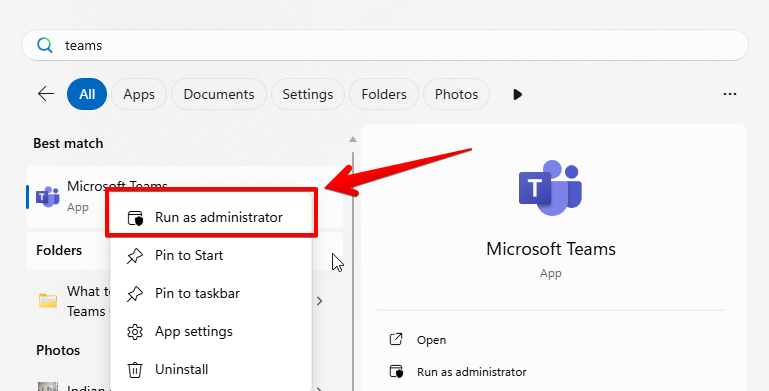
- If prompted by User Account Control, click Yes to allow access.
- Wait for Teams to launch with elevated permissions.
- Check whether the component error still appears.
#6 Check for Windows Updates
Sometimes the problem does not originate from Teams itself. Missing Windows updates can cause compatibility issues with newer application versions. Keeping Windows fully updated ensures that system libraries and services required by Teams are available.
Steps:
- Open Settings from the Start menu.
- Click Windows Update in the sidebar.
- Select Check for updates.
- Allow Windows to download and install any available updates.
- Restart your computer if prompted.
- Launch Microsoft Teams after the system update finishes.
#7 Disable Conflicting Security Software
Certain antivirus or firewall programs may block application components that Teams needs to run. When this happens, the application may interpret the blocked file as a missing component.
Temporarily disabling security software can help determine whether it is causing the problem.
Steps:
- Locate your antivirus or security software in the system tray.
- Right-click the security software icon.
- Choose the option to temporarily disable protection.
- Select a short duration such as 10 or 15 minutes.
- Open Microsoft Teams while the security software is disabled.
- If Teams launches successfully, adjust the antivirus settings to allow Teams through the firewall.
#8 Create a New Windows User Profile
Occasionally, the issue may stem from a corrupted Windows user profile. Application data stored under the profile may become damaged and interfere with Teams. Creating a new profile allows you to test whether the error is tied to your existing user environment.
Steps:
- Open Settings and navigate to Accounts.
- Click Family & other users or Other users.
- Select Add someone else to this PC.
- Follow the prompts to create a new local user account.
- Sign out of your current account and log in using the new account.
- Install or launch Microsoft Teams under the new profile.
- Check whether the application runs without the component error.
Conclusion
When Microsoft Teams displays the error “cannot find a required component to run,” it typically indicates that some necessary dependencies or files are either corrupted or missing. Common causes include incomplete updates, damaged installations, and cache file issues. You can implement the practical methods mentioned above in this blog.
The Microsoft Edge WebView2 Runtime, which Teams uses to display web-based content, is an important component. Rebuilding the required environment for Teams can be accomplished by removing malfunctioning registry entries or by installing and reinstalling the WebView2 Runtime. Most users can restore Teams and get it operating normally again by following these steps.