The laptop is an essential tool for professional activities, studies, or leisure! Between its screen (whether touch-sensitive or not), its keyboard used for hours on end, and a frequently solicited touchpad, it tends to accumulate dust, fingerprints, and other impurities.
In the long term, this does not just affect its appearance but can also impact its performance. A good physical and software cleaning extends the lifespan of your device and optimizes user comfort.
Let’s discover together how to proceed effectively, step by step. We explain everything in this article!
Why Regularly Maintain Your Laptop?
Periodic cleaning considerably reduces the premature wear and tear of your device. Furthermore, the accumulation of dirt can cause overheating, reduce key responsiveness, or even damage certain internal components. Adopting good habits makes the task less tedious and prevents dirt from settling in permanently.
Beyond the aesthetic aspect, this maintenance also improves general performance. By eliminating dust around the vents, better air circulation is promoted, thereby enhancing the efficiency of the cooling system. Software cleaning completes this process by removing unnecessary files that slow down the overall operation of the computer.
What Equipment Do You Need for Optimal Cleaning?
Before starting any operation, it is important to gather suitable accessories to avoid any risk of damage. Several simple yet effective items are recommended to carry out this process without damaging the different surfaces:
- Soft and clean microfiber cloths, indispensable for not scratching the screen or the casing.
- A can of compressed air (or dry air), perfect for dislodging dust embedded in small gaps.
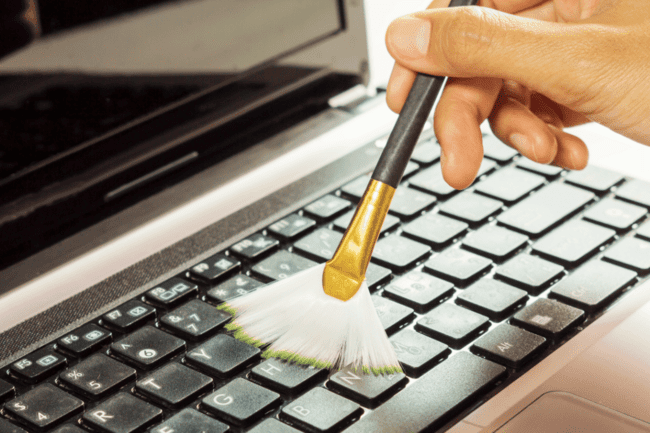
- Cotton swabs and anti-static brushes for hard-to-reach corners.
- A mixture of warm water and rubbing alcohol (with a low alcohol content) to disinfect certain areas without leaving streaks.
- Reliable cleaning software to optimize the system and delete bulky temporary files.
Using appropriate products guarantees effective cleaning. Liquids that are too abrasive or rough fabrics risk damaging fragile surfaces, particularly those of the screen and the touchpad.
Physical Cleaning: What Steps to Follow?
Physical cleaning mainly concerns all external parts: screen, keyboard, mouse or touchpad, casings, and connectivity ports. Each area requires a very specific technique to guarantee safety and efficiency. Following these steps will minimize the risks of damaging internal components or leaving unsightly streaks.
How to Properly Clean the Screen?
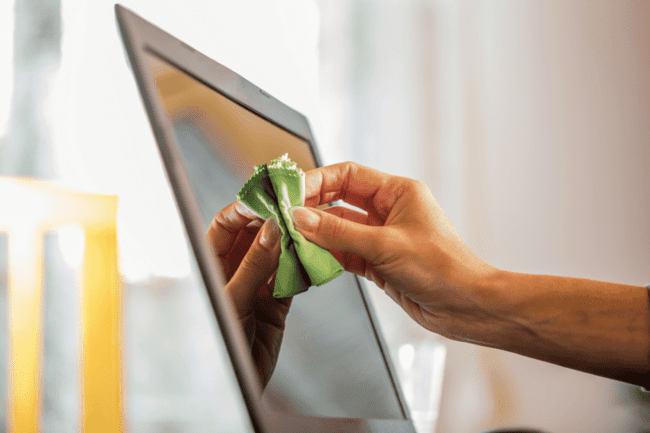
The screen of a laptop remains the part most exposed to fingerprints and dust. To preserve its clarity, start by turning off the device and then unplugging it.
- Use a dry microfiber cloth to gently remove surface dust.
- If necessary, slightly dampen the cloth with a mixture of warm water and rubbing alcohol (never spray directly onto the screen).
- Wipe in small circles without pressing to avoid marks and obtain a surface free of reflections or spots.
Remember to repeat this action at least once a week if the computer is used daily. Forgetting this step promotes the accumulation of residues that can dim the brightness and affect the display in the long term.
What Gestures to Adopt for the Keyboard and Ports?
The keyboard welcomes crumbs, hair, dust, and bacteria. Start by gently turning the computer upside down to shake loose debris. Then, use the compressed air can to blow out the dust lodged between the keys ; angle it from different directions for maximum effectiveness.
For a thorough clean, wipe a slightly dampened microfiber cloth over the keys. There is no question of soaking the keyboard: the less moisture there is, the better. Cotton swabs can be useful for inaccessible corners. Also proceed to dust the ports: USB, HDMI, or audio—all deserve a few blasts from the compressed air can, always from a reasonable distance.
How to Maintain the Touchpad and the Casing?
The surface of the touchpad accumulates prints and lint, quickly showing signs of wear. Clean it with gentle circular motions, using a barely dampened microfiber cloth (possibly with a hint of warm water). Then, dry the area so it retains a perfect glide.
The outer casings appreciate the same treatment as a screen: manual dusting followed by gentle wiping. Avoid using aggressive solutions likely to degrade the materials. To restore radiance to a laptop with a matte or glossy finish, always prioritize caution.
Good to know: Do not hesitate, if necessary, to replace faulty or damaged parts of your laptop. For Asus brand computers, specialized sites like A-accessories.com offer numerous original spare parts. Ideal for extending the lifespan of your PC!
Internal Cleaning: How to Limit the Risks of Overheating?
If dust infiltrates under the hood, it directly affects the efficiency of the fans and disrupts thermal regulation. Even if the operation can seem daunting, it does not necessarily require being an expert. A moderate intervention is often enough to maintain good performance, especially if carried out every six months.
Should You Disassemble the Internal Components Yourself?
Some models offer simplified access to the memory or fan hatch. Before you begin, check the product warranty and locate the opening screws. A can of compressed air helps clear dust accumulated near fans and printed circuit boards without ever directly touching the parts. Always work in a well-lit area, away from static sources.
Do not attempt complex disassembly without prior experience. Sometimes, surface maintenance via the ventilation grilles already brings a clear breath of fresh air. As soon as noise increases or heat becomes noticeable, it may be wise to consult a qualified technician.
What Precautions to Take When Cleaning with Compressed Air?
Using a can of compressed air must respect certain principles so as not to damage components. Keep the aerosol upright and apply short bursts, never prolonged ones, to avoid condensation. Focus on the air outlets and visible openings. Plan to perform this handling with the computer turned off and the battery removed (if possible).
The accumulation of dust inside the chassis generates temperature spikes that harm general reliability. Reducing this phenomenon offers a real gain in the longevity of internal components. Even without fully opening the machine, regular maintenance proves sufficient for most users.
What Steps to Include in an Effective Software Cleaning?
Software cleaning complements physical efforts and helps restore a fast and responsive computer. Specialized tools detect obsolete software, unused files, or resource-heavy applications. This approach also protects against certain computer threats and optimizes hard drive usage.
What Tools to Use to Clean Superfluous Files?
Several programs exist to scan and delete temporary files, browsing histories, and useless caches. Run a deep scan, select the entries to delete, and validate the proposed sorting. Avoid manually deleting files whose utility you do not understand to prevent any troublesome errors.
The space recovered this way improves not only startup speed but also frees up storage capacity. Plan to perform this type of software cleaning monthly, depending on how intensively the laptop is used.
Why Update Your System and Applications?
Regularly updating the operating system and applications optimizes security and prevents certain disabling bugs. Each update fixes vulnerabilities, strengthens protection against viruses, and ensures optimal compatibility with newly connected devices.
Adopt the habit of scheduling automatic updates. This limits the time spent on software maintenance and prevents forgetting a crucial action. Programming antivirus scans also helps maintain smooth and secure usage over time.
When Should You Renew the Cleaning or Call a Professional?
The ideal frequency varies depending on the environment: a laptop frequently handled in shared spaces or exposed to dust requires weekly surface maintenance, coupled with a systematic intervention on internal components every six months. Other factors such as the presence of pets or smokers nearby heavily influence cleaning frequency.
As soon as real issues appear (persistent slowdowns, unusual overheating, unexplained crashes, or hardware failures), it is better to consult a specialist. The latter can accurately diagnose a potential accumulation of dust on internal components or propose a more advanced software cleaning solution tailored to the situation.
A Few Tips to Keep a Computer Clean Longer
Prevention is better than having to spend long hours cleaning. A few simple actions ensure cleanliness and reduce radical interventions. Here are some easy tips to adopt:
- Always wash your hands before using the laptop.
- Avoid eating near the keyboard to limit spills and crumbs.
- Store the computer in a sleeve when transporting it to protect the screen and keyboard from dust.
- Keep a small cleaning kit close at hand to act as soon as a mark appears.
- Make sure to place the computer on a clean, stable surface free of particles when it is operating.
Thanks to these habits and the combination of careful physical cleaning, regular attention paid to the system, as well as the use of adapted products like microfiber cloths, daily maintenance becomes simple and fast. Protecting your laptop today means maximizing its performance tomorrow while avoiding bad surprises related to dust accumulation or unexpected malfunctions.