A mysterious system error is one of the things that disrupts your workflow the fastest. Your application launches normally one moment, and then a message stating “TWCU Failed to Load Library File” appears. On a Windows system, this error typically indicates that the program is unable to access a necessary library file for proper operation.
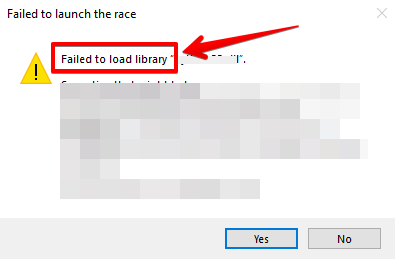
The good news? Common issues like corrupted files, missing dependencies, or permission conflicts are usually the cause of this problem. You can typically fix it in a matter of minutes if you follow the correct troubleshooting procedures.
We’ll go over what the TWCU Failed to Load Library File error means, why it occurs, and how to safely and swiftly resolve it in this guide.
Contents
- What Does “TWCU Failed to Load Library File” Mean?
- Fix 1: Run TWCU in Compatibility Mode
- Fix 2: Reinstall Drivers and Tools
- Fix 3: Run SFC Scannow to Repair Windows System Files
- Fix 4: Give your computer a restart
- Fix 5: Run the Program as Administrator
- Fix 6: Reinstall the Application
- Fix 7: Install or Update Microsoft Visual C++ Redistributables
- Fix 8: Update Windows
- Fix 9: Restore Your System to an Earlier State
- How to Prevent This Error in the Future
- Conclusion
What Does “TWCU Failed to Load Library File” Mean?
It is helpful to comprehend the true meaning of the error before diving into solutions. Applications rely on shared code found in library files (typically DLLs or related system components) to carry out specific tasks. Developers store reusable code inside library files rather than embedding it all into a single program.
The TWCU Failed to Load Library File message appears when Windows or an application tries to load this library but is unsuccessful.
This can happen if:
- The library file is missing
- The file has become corrupted
- Windows cannot access the file location
- A required dependency is not installed
- Security software blocks the file
Below are fixes that can resolve this TWCU error
Fix 1: Run TWCU in Compatibility Mode
Because the program was created for earlier versions of Windows, the TWCU Failed to Load Library File error can occasionally occur. The program might have trouble loading some components if you’re using Windows 10 or Windows 11. Running TWCU in Compatibility Mode, which simulates an earlier Windows environment, can be helpful in this scenario.
Compatibility Mode resolves compatibility issues and library loading by enabling older programs to function as if they were running on an earlier version of Windows.
Procedure:
- In the Windows search box, type TWCU.
- Open the file location by doing a right-click on the outcome.
- Right-click twcu.exe in the installation folder, then choose Properties.
- Select the Compatibility tab.
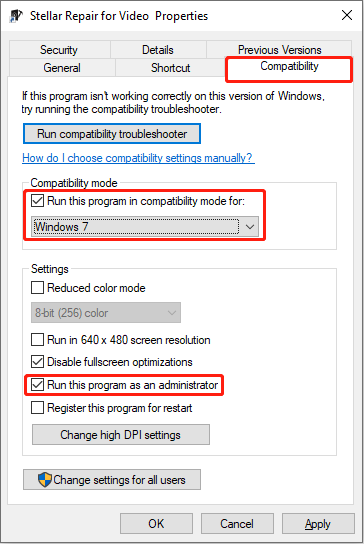
- Click on Windows 7 or Windows 8, and make sure “Run this program in compatibility mode for” section is checked.
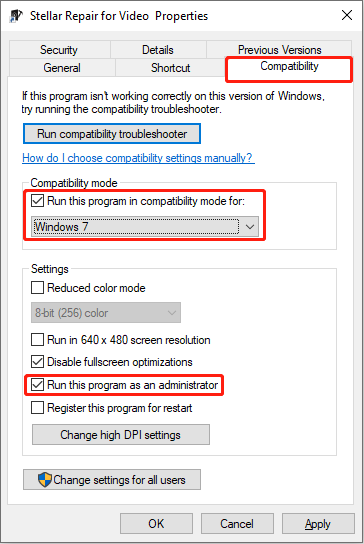
- To make sure the program has complete permissions, check Run this program as an administrator.
- After clicking Apply, choose OK.
- TWCU will launch in a simulated older Windows environment after these settings are applied, which can frequently avoid compatibility-related library errors.
Fix 2: Reinstall Drivers and Tools
The current driver might not be completely compatible if the TWCU Failed to Load Library File error surfaced following a system upgrade, such as switching from Windows 10 to Windows 11. Sometimes, under a more recent operating system, older drivers are unable to load necessary library components. You can make sure the driver is compatible with your current version of Windows by reinstalling it.
Windows can automatically install a new, compatible driver when the old one is removed. Here is how you reinstall drivers.
- From the menu, choose Computer Management by pressing Win + X.
- Click on “system tool” and go to device management and then “Network Adaptors”.
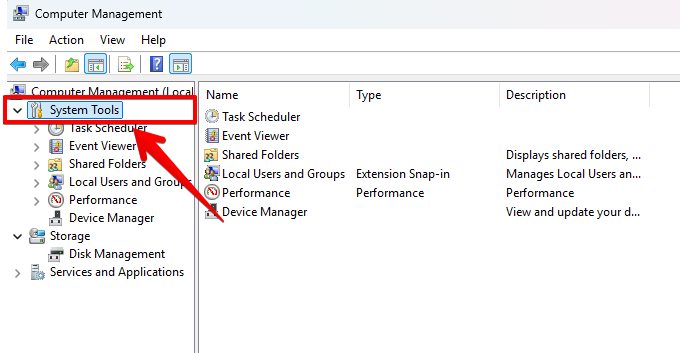
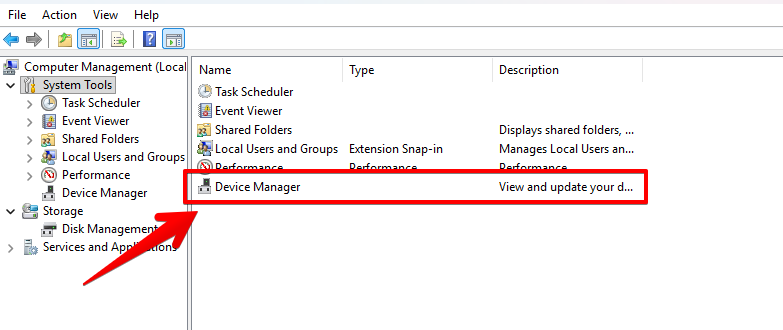
- Do right-click on the TP-LINK network card and click on uninstall.
- To fully remove the current driver, select Delete the driver software for this device.
- To confirm, click Uninstall.
Restart your computer once the process is complete. Windows will make an effort to identify the hardware on its own and reinstall the relevant driver. This frequently fixes compatibility problems that keep TWCU from loading necessary library files.
Fix 3: Run SFC Scannow to Repair Windows System Files
The TWCU Failed to Load Library File error may also be caused by corrupted or absent Windows system files. Programs may not load the libraries they require if critical system components are damaged. The System File Checker (SFC) tool can assist in fixing those files in this case.
The sfc /scannow command automatically replaces corrupted system files with healthy ones after scanning your Windows installation. You can perform the SFC scan straight from Windows if your computer can boot up normally.
Procedure:
- Bring up search bar and type “CMD”.
- Open CMD as the admin of the system by right clicking on it and selecting the administrator option.
- Now type this “sfc /scannow” command inside CMD.
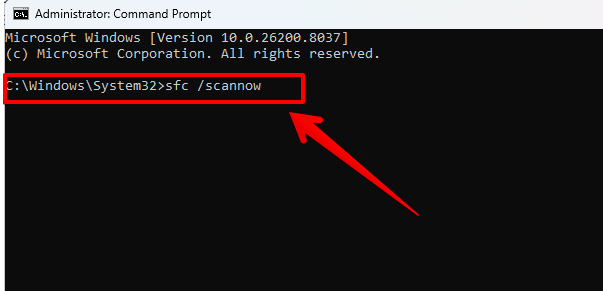
The program will start looking for missing or corrupted files on the system. This could take a few minutes. Restart your computer after the scan is finished to see if the TWCU error has been fixed.
Fix 4: Give your computer a restart
The simplest solution can sometimes be surprisingly effective. Windows may not load necessary files due to transient system issues.
When you restart your computer, system services are reloaded and temporary memory states are cleared.
Procedure:
- Select the Start menu.
- Choose Power.
- Select Restart.
- Await the full reboot of Windows.
- Open the program once more.
The error might go away after restarting if the problem was brought on by a transient loading conflict.
Fix 5: Run the Program as Administrator
The program may not load if Windows prevents access to the necessary library file.
Permission restrictions can be circumvented by running the program with administrator privileges.
- Find the executable file or application shortcut.
- Do a right-click on the file.
- Choose “Run as administrator.”
- If Windows requests permission, confirm the prompt.
- Verify that the program opens without error.
If the problem goes away, it indicates that the program was unable to access the library file due to Windows permission settings.
Fix 6: Reinstall the Application
Corrupted or missing application files are a common reason behind this error. Reinstalling the software ensures all necessary components are restored.
- Press Windows + R to open the Run dialog box.
- Type appwiz.cpl and press Enter.
- Locate the program causing the error.
- Right-click it and select Uninstall.
- Restart your computer after removal.
- Download the latest version of the program from the official website.
- Install it again and launch the application
A fresh installation replaces any damaged files that might have triggered the problem.
Fix 7: Install or Update Microsoft Visual C++ Redistributables
Many Windows programs rely on Microsoft Visual C++ runtime libraries to function correctly.
If these components are missing or outdated, the application may fail to load certain libraries.
Steps:
- Visit Microsoft’s official website.
- Download the latest Visual C++ Redistributable packages.
- Install both x86 and x64 versions.
- Restart your computer.
Once installed, Windows will have the required runtime libraries available for applications.
Fix 8: Update Windows
Outdated Windows components may also prevent certain libraries from loading correctly.
Steps:
- Press Windows + I to open Settings.
- Go to the updates section and check it.
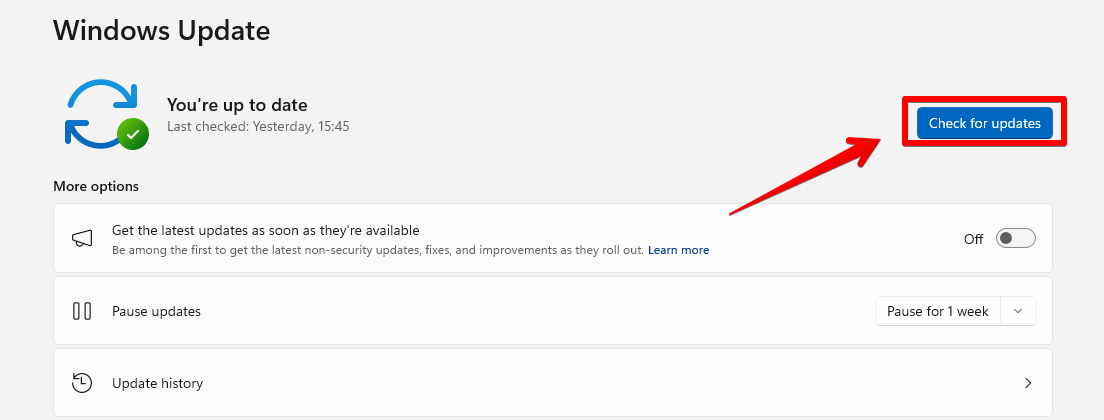
- If there are new Windows patches ready to install, then you do it.
- Reboot your PC
System updates often include fixes for library conflicts and compatibility issues.
Fix 9: Restore Your System to an Earlier State
If the error started appearing recently, a system restore can revert Windows back to a working state.
This option is useful if a recent update or installation caused the problem.
Steps:
- Press Windows + S and type “restore point”.
- Navigate to the Protection tab.
- Click System Restore.
- Revert to a restore point you had before.
- Follow the on-screen instructions.
Once the process completes, check whether the application works normally.
How to Prevent This Error in the Future
Maintaining a stable Windows environment is crucial to preventing the TWCU Failed to Load Library File error from recurring. To ensure that apps have access to the most recent system libraries and compatibility fixes, keep your system up to date. To prevent corrupted or altered files, only install software from reliable sources. Since many programs depend on particular library components to function properly, avoid erasing files inside program folders. Maintaining frequent system backups and utilizing dependable antivirus software are also beneficial ways to prevent malware from damaging crucial system files.
Conclusion
When Windows or the application is unable to locate, load, or access a necessary library file, the TWCU Failed to Load Library File error typically occurs. The solution is frequently simple, even though the message may appear technical.
The problem can be easily fixed by restarting your system or reinstalling Microsoft Visual C++ Redistributables. You should be able to resolve the issue and restore your application’s functionality using these troubleshooting techniques.